

Introduction: From Pain to Power with Terraform Import
Let’s be honest—Terraform import used to be a bit of a nightmare. You’d find yourself digging through provider docs, manually reverse-engineering a resource config, and hoping Terraform wouldn’t misinterpret your intentions and nuke your infrastructure.
Sound familiar?
Whether you’re migrating legacy infrastructure, cleaning up technical debt, or just trying to bring order to the chaos, the Terraform import command used to feel more like surgery than a simple tool in your DevOps toolkit.
But thankfully, Terraform 1.5+ introduced a game-changer: the import block paired with the terraform plan -generate-config-out flag. This modern approach makes it easier, safer, and a whole lot faster to bring existing resources under Terraform’s control—without writing the entire configuration by hand.
Importing resources helps integrate them into Terraform’s management, ensuring effective organization and control within the infrastructure as code paradigm.
In this blog post, we’ll walk through:
- 🧱 What the traditional import method looked like (and why it was risky)
- 🆕 How the new import block and generated config work
- 💡 A real-world demo using UpCloud as our cloud provider
- ✅ Best practices and common gotchas
- 🧨 How to confidently bring resources into Terraform (and destroy them, too 😎)
Ready to make Terraform import a breeze? Let’s dive in.
Video
Below is a video demonstration.
Video Chapters
You can skip to the relevant chapters below:
- 00:00 Introduction to Terraform Importing
- 00:38 Understanding the Traditional Import Method
- 02:43 Introducing the New Import Block Method
- 04:27 Demo: Importing a Server into Terraform
- 05:13 Setting Up for the Demo
- 06:41 Executing the Import Process
- 08:03 Handling Errors and Finalizing Import
- 11:10 Verifying and Managing Imported Resources
- 13:56 Conclusion and Final Thoughts
What is Terraform Import?
Terraform Import is a powerful feature that allows you to bring existing infrastructure resources under Terraform’s management. Whether you have EC2 instances, S3 buckets, IAM roles, or other resources created outside of Terraform, this feature enables you to import these existing resources into your Terraform configuration. By doing so, you can start managing them using Terraform, ensuring consistency and control over your infrastructure.
Of course terraform import is not specific to a certain cloud provider, you just need to check the provider documentation and you’re good to go.
This capability is particularly useful when you have resources that were manually created or managed by other tools and you want to transition to Terraform for better infrastructure management. With Terraform Import, you can seamlessly integrate these existing resources into your Terraform workflow, making it easier to maintain and update your infrastructure as code.
Understanding Terraform Import: The Traditional Way
Before we get to the good stuff, let’s take a quick look at how Terraform import used to work—so we can truly appreciate the new method.
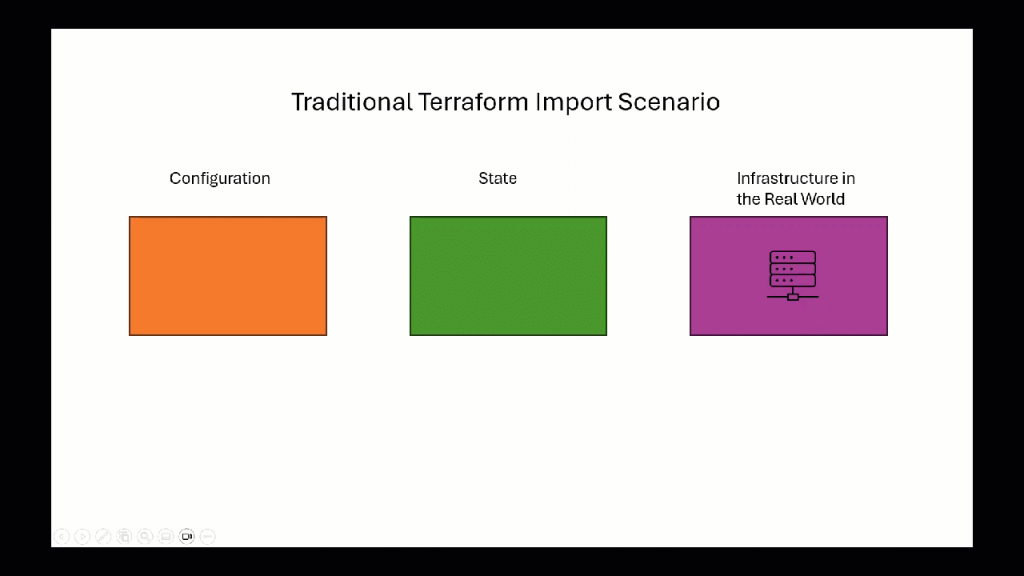
Traditionally, the “terraform import” command was used to bring existing resources into Terraform’s management. This required specifying the resource address enabling users to correctly reference and manage imported resources within their infrastructure code.
The Old Workflow Looked Like This:
- You had infrastructure running somewhere (e.g., a VM on AWS, a GCS bucket, a Load Balancer, etc.)
- You wanted Terraform to manage it.
- So you ran:
terraform import <resource_address> <resource_id>
For example:
terraform import aws_instance.my_ec2 i-0abcd1234efgh5678
- This brought the resource into Terraform state, but here’s the kicker…
⚠️ If you didn’t already have the exact configuration written out in code, Terraform had no idea what you intended—and could delete the whole thing on the next terraform apply.
That’s because Terraform is declarative. If your config says “I have no resources,” and the state says “you have one,” Terraform’s like, “Cool, I’ll go delete it for you.”
Not ideal.
What Made the Old Method Painful?
- You had to manually write the resource block config
- You needed to know all required and optional attributes
- If you missed anything or guessed wrong—boom 💥
- Drift between config and state was common
- It didn’t scale well for multiple resources
- It took a really long time
The Modern Import Block: Smarter, Safer, Faster
Now enter the Terraform import block, released with version 1.5.
The import block facilitates importing existing infrastructure resources, allowing you to manage resources created outside of Terraform.
Here’s how it works:
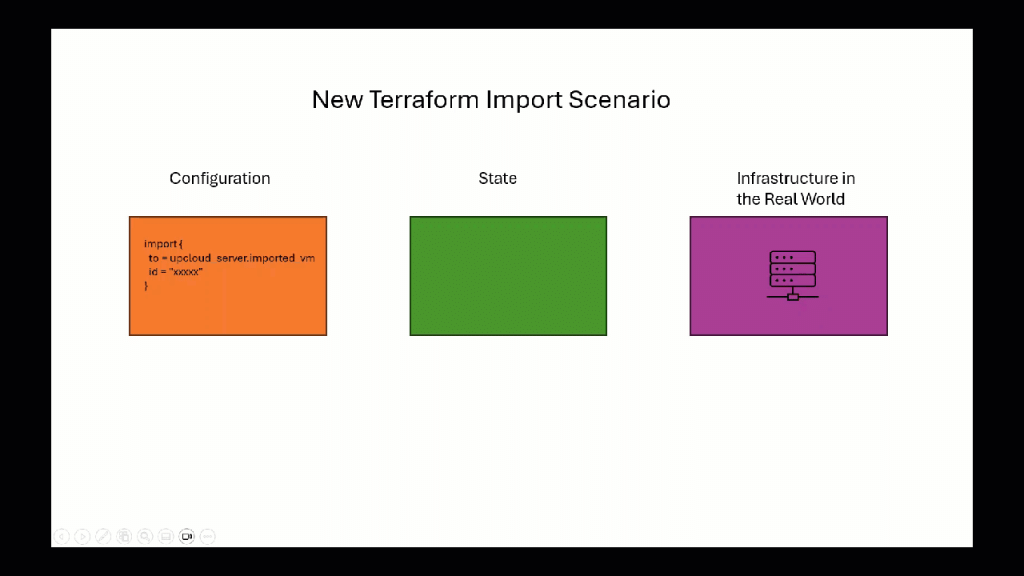
Instead of juggling CLI commands and config files, you can declare your imports inside your Terraform code:
import {
  to = upcloud_server.imported_vm
  id = "00000000-0000-0000-0000-000000000000" # actual VM UUID here
}
This block tells Terraform:
“Hey, I want this existing resource to be managed as upcloud_server.imported_vm. Here’s its ID.”
Now comes the real magic…
Run this:
terraform plan -generate-config-out=generated_config.tf
Terraform will:
- Reach out to the provider
- Fetch all the resource details
- Auto-generate a configuration file based on the actual attributes of that existing resource
No more guessing, no more copy/pasting from documentation, and way fewer “oops” moments.
This workflow is still marked experimental, but it works beautifully for most providers that support imports (and yes, AWS, Azure, GCP, and UpCloud are all on board).
Demo: Importing a Real VM Using UpCloud and Terraform
Let’s roll up our sleeves and walk through this new method step-by-step using UpCloud, a reliable cloud provider that fully supports Terraform imports.
This demo reflects a real use case—importing a manually created virtual machine into Terraform, generating the configuration automatically, and taking over full lifecycle management.
🧰 Prerequisites
Before we begin, make sure you have:
- ✅ Terraform v1.5.0 or higher installed
- ✅ An UpCloud account (you can sign up here and use code TEKANAID50 for €50 in free credits)
- ✅ An existing VM created manually via the UpCloud console
- ✅ Your UpCloud API credentials (username/password)
Let’s authenticate securely via environment variables:
export UPCLOUD_USERNAME="your_api_username"
export UPCLOUD_PASSWORD="your_api_password"
🗂️ Project Structure
Create a basic Terraform file:
terraform {
  required_providers {
    upcloud = {
      source  = "UpCloudLtd/upcloud"
      version = "5.20.4"
    }
  }
}

provider "upcloud" {
  # Credentials come from env vars: UPCLOUD_USERNAME and UPCLOUD_PASSWORD
}

# Import existing VM from UpCloud
import {
  to = upcloud_server.imported_vm
  id = "your-vm-uuid-here"
}
🖥️ Step 1: Show the Existing VM
Head over to the UpCloud web console. Identify the VM you created manually—this could be a legacy resource, something created by another team, or even a test machine.
Copy the UUID of the VM—we’ll need this for the import block.
🧪 Step 2: Initialize Terraform
Let’s get the project ready:
terraform init
This sets up your backend and downloads the required provider plugins.
Now, run:
terraform plan
Without a proper resource block defined, Terraform will tell you that the import block references a resource it doesn’t know how to manage yet. That’s expected!
🧻 Step 3: The Traditional Way (Not Recommended Anymore)
To use the old way, you’d manually write a config like this:
resource "upcloud_server" "imported_vm" {
  hostname = "my-imported-vm"
  zone     = "fi-hel1"
  plan     = "1xCPU-2GB"

  network_interface {
    type              = "public"
    ip_address_family = "IPv4"
  }

  storage_devices {
    address = "virtio:0"
    storage = "storage-uuid"
    type    = "disk"
  }
}
You’d have to figure out every required attribute. It’s tedious and prone to error—especially for complex resources like load balancers, networks, or managed databases.
⚡ Step 4: Use the Import Block with Auto-Generated Config
Now let’s do this the modern way:
terraform plan -generate-config-out=generated_config.tf
Terraform inspects the import block, contacts UpCloud, and writes all known attributes of the VM into generated_config.tf.
🎉 No more guessing!
Open the file and you’ll see something like:
resource "upcloud_server" "imported_vm" {
  hostname = "imported-vm"
  zone     = "fi-hel1"
  plan     = "1xCPU-2GB"
  ...
}
✅ Network interfaces
✅ Storage devices
✅ OS templates
✅ All filled in for you
Awesome — let’s continue with Part 2 of the blog post.
🚀 Step 5: Apply the Import
At this point, we have two key files in our Terraform project:
- main.tf — contains the provider block and the import block
- generated_config.tf — auto-generated resource config from Terraform
Now let’s actually bring the resource into our state file.
Run:
terraform apply
Terraform will recognize the import block and the associated configuration, and ask for confirmation:
Terraform will perform the following actions:

  # upcloud_server.imported_vm will be imported
Approve it:
Do you want to perform these actions?
  Terraform will import the resource into the Terraform state.
  Enter a value: yes
✅ Boom—import successful.
Now check the state file:
terraform state list
You should see your imported VM listed. That means Terraform is now officially managing your previously “manual” infrastructure.
🔍 Step 6: Managing the Imported Resource
Once the import is complete, you’re free to:
- Clean up the generated_config.tf by copy/pasting into main.tf
- Modify the resource (e.g. change plan, add tags, rename hostname)
- Add outputs, modules, or other resources in your config
- Use terraform plan to preview changes
- Use terraform apply to deploy them
💡 Tip: Some teams like to leave the import block in the codebase for audit/history. Others delete it after a successful import. It’s up to your org’s preferences.
💣 Step 7: Destroy the Imported Resource (Optional, But Powerful)
Let’s say you want to clean up the imported resource now that it’s managed by Terraform.
First, preview what Terraform will do:
terraform plan -destroy
It should show:
Terraform will perform the following actions:

  # upcloud_server.imported_vm will be destroyed
If that looks good, run:
terraform destroy
Approve the prompt:
Do you really want to destroy all resources?
  Terraform will delete all your managed infrastructure.
  Enter a value: yes
✅ Terraform will cleanly destroy your VM and remove it from the state file.
👀 In our UpCloud demo, we verified this by checking the UI—VM gone.
🔁 Comparing Old vs. New Terraform Import Methods
| Feature | Traditional Import | Import Block + Auto Config |
|---|---|---|
| Manual Config Required | ✅ Yes | ❌ No |
| Risk of Deletion | ⚠️ High (if config missing) | 🔐 Low (config is generated) |
| Setup Time | 🕒 Long | ⚡ Fast |
| Error Prone | 😬 Yes | 😊 Less so |
| Easy to Use for Beginners | ❌ Not really | ✅ Much easier |
| Supports Complex Resources | 😫 Painful | 💪 Easier, still may need tweaks |
The import block method is not just more user-friendly—it’s a big step toward safer infrastructure migrations.
🛠 Best Practices for Terraform Import (New Method)
- Use terraform plan -generate-config-out with every import.
This is your starting point. Even if you plan to refactor the config later, it’s better than starting from scratch. - Validate config before apply.
Always run a terraform plan before applying, especially if you’ve edited the generated file. - Understand provider limitations.
Some attributes may conflict (e.g. plan vs. cpu/memory in UpCloud). The error messages usually tell you what to fix. - Keep your import blocks modular.
Especially if importing many resources—use separate files or modules for clarity. - Review Terraform state.
Use terraform state show <resource> to inspect what’s been imported and what values Terraform knows. - Version control everything.
Even generated config should go in Git (after you validate and clean it up). - Document what you imported.
Your future self (and teammates) will thank you.
🧱 Common Challenges (and How to Fix Them)
Here are some common issues folks run into—and how to handle them:
⚠️ Error: “The import block target does not exist”
Why it happens: Terraform can’t find a matching resource in your config.
Fix: Make sure the to = … in your import block exactly matches the name of your resource block.
⚠️ Error: “Attribute ‘cpu’ cannot be specified when ‘plan’ is set”
Why it happens: Some providers (like UpCloud) have overlapping attributes.
Fix: Remove the cpu and memory fields if you’ve already defined plan.
⚠️ Resources left behind after destroy
Why it happens: Not all components (e.g. storage volumes) were imported.
Fix: Check for other related resources (e.g. disks, interfaces) and import them too.
🧩 Bonus: Importing Multiple Resources
Terraform 1.5 also introduced support for importing multiple resources using for_each. Example:
locals {
  vm_ids = [
    "uuid-1",
    "uuid-2"
  ]
}

import {
  for_each = toset(local.vm_ids)
  to       = upcloud_server.imported_vm[each.key]
  id       = each.value
}
Now you’re importing two VMs in a single block. Terraform will loop through and generate configs for each one.
💡 Great for onboarding legacy environments or multi-VM apps.
📈 Why This Matters for Platform Engineering
Terraform import isn’t just a technical trick—it’s a gateway to proper infrastructure as code (IaC).
For platform engineers, importing existing resources means you can:
- Take ownership of legacy systems
- Onboard new teams to your platform faster
- Eliminate snowflake environments
- Standardize deployment workflows
- Enable full GitOps and CI/CD pipelines
And hey, the job market is watching. The median platform engineer salary in 2024 was $161,250. Investing in modern workflows like this pays off.
And it’s not just you—Gartner predicts that by 2026, 80% of engineering orgs will have platform teams offering reusable services and tooling (up from just 45% in 2022).
Terraform import is a critical tool in that toolbox.
Common Questions About Terraform Import
Here are some common questions about Terraform Import, along with clear and concise answers to help you understand this feature better:
- Does Terraform Import generate code?
- No, Terraform Import does not generate code. It only updates the Terraform state file to reflect the existing infrastructure. You will need to manually write or generate the configuration file to match the imported resource.
- Can I import multiple resources at once?
- Yes, you can import multiple resources at once using the for_each argument in the Import block. This allows you to loop through a list of resource IDs and import them in a single operation.
- What is the difference between Terraform Import and Terraform state mv?
- Terraform Import is used to import existing resources into Terraform’s management, while Terraform state mv is used to move resources from one state file to another. The former brings external resources under Terraform control, while the latter reorganizes resources within Terraform’s state.
- Can I use Terraform Import with multiple cloud providers?
- Yes, Terraform Import supports multiple cloud providers, including AWS, Azure, and Google Cloud. This flexibility allows you to manage a diverse set of resources across different platforms using Terraform.
- How do I manage configuration after importing a resource?
- After importing a resource, you need to update your Terraform configuration to match the imported resource. Use the terraform plan command to verify that the configuration is correct and make any necessary adjustments to ensure consistency between your configuration and the actual resource.
By addressing these common questions, you can gain a better understanding of how to effectively use Terraform Import to manage your existing infrastructure resources.
🏁 Conclusion: Import Smarter, Not Harder
Terraform’s new import block and the generate-config-out flag are absolute game changers. Whether you’re inheriting legacy infrastructure, migrating to IaC, or just cleaning up messy cloud setups, this feature makes the process faster, safer, and a whole lot easier.
We covered:
- ✅ Traditional import vs. modern method
- 🧠 Why config generation is safer
- 🔥 A full UpCloud demo
- 🚧 Common pitfalls and how to avoid them
- 📦 Best practices for success
You now have everything you need to confidently bring existing resources into Terraform and start managing them like a pro.
🎁 Bonus: Want to Try It Yourself?
Sign up for UpCloud and use promo code TEKANAID50 for €50 in free credits + 7-day trial:
👉 https://signup.upcloud.com/?promo=tekanaid50
🔗 Useful Links
- Terraform Official Import Docs
- UpCloud Terraform Provider
- The Previous Import Video (Old Way)
- Playgrounds & Courses
- TeKanAid Academy
Want more guides like this?
Subscribe to TeKanAid on YouTube
Code
Hi and Welcome!
Join the Newsletter and get FREE access to all my Source Code along with a couple of gifts.